

Personalized Outbound Strategy
Get The Right Outbound Strategy In Minutes
Enter your email to get a custom plan & stack recommendation for your business
It's being carefully crafted by AI
Please check your mailbox in 5 minutes
MCP servers are becoming a new part of B2B lead generation workflows. Tools like Leadsforge, Clay, Instantly, Apollo.io, and Amplemarket now let AI assistants like Claude and ChatGPT interact directly with prospecting and outbound platforms.
This allows AI to help with lead sourcing, enrichment, lead lists, research, and outreach workflows. But every MCP server focuses on a different part of lead generation.
Some are better for prospecting and enrichment, while others focus more on outbound execution and AI SDR workflows.
In this guide, I’ll compare 5 MCP servers for B2B lead generation and explain what each one actually does best.
An MCP server helps AI tools like Claude, ChatGPT, Cursor, and Claude Code connect directly with lead generation platforms. This allows AI to perform actions inside these tools instead of only generating text.
For example, depending on the platform connected, AI can search for prospects using filters like job title, company size, or industry, enrich LinkedIn profiles with work emails and company data, create lead lists, add prospects into outreach campaigns, and check contact or campaign activity.
This is useful because B2B lead generation usually involves multiple manual steps across different tools. MCP servers help reduce that manual work by letting AI handle parts of the workflow through simple prompts.
I focused on MCP servers that actually help with B2B lead generation workflows I looked at how each MCP server performs across the main parts of the outbound workflow. Here’s how I evaluated them:
These checks helped me separate true lead generation MCP servers from tools that only offer basic integrations.

Leadsforge MCP Server connects Leadsforge with AI tools like Claude, ChatGPT, Cursor, and Claude Code. It allows AI to interact directly with Leadsforge prospecting and enrichment workflows through the Leadsforge API.
The platform is mainly focused on B2B lead sourcing, enrichment, lookalike search, and competitor follower workflows.
Instead of manually searching leads, enriching contacts, exporting lists, and moving data between tools, teams can use AI prompts to work inside Leadsforge workflows.
Leadsforge MCP is more focused on the prospecting side of outbound rather than campaign execution.
To connect Leadsforge MCP Server with Claude Desktop, you first need:
First, log in to Leadsforge and generate your API key from: Settings → API → Generate API Key.

Then open Claude Desktop and go to: Settings → Developer → Edit Config. Inside the claude_desktop_config.json file, add the MCP configuration using the Salesforge MCP endpoint and your Leadsforge API key:
{
 "mcpServers": {
   "salesforge": {
     "command": "npx",
     "args": [
       "-y",
       "mcp-remote",
       "https://mcp.salesforge.ai/mcp",
       "--header",
       "X-Leadsforge-Key:YOUR_LEADSFORGE_API_KEY"
     ]
   }
 }
}
Replace YOUR_LEADSFORGE_API_KEY with your actual Leadsforge API key. After saving the file, restart Claude Desktop and make sure the MCP server is enabled inside chat settings.
Once connected, Claude can access Leadsforge prospecting and enrichment workflows through prompts.
From what I tested, the Leadsforge MCP workflow is mainly useful during the prospecting stage where teams usually spend the most manual time building and enriching lead lists.
Step 1: Connect Leadsforge With Your AI Tool - First, connect Leadsforge with Claude, ChatGPT, Cursor, or Claude Code using your Leadsforge API key and MCP setup.
Step 2: Search for ICP-Matched Prospects - Then you can ask the AI to search for leads using filters like job title, seniority, department, company size, revenue range, industry, and location.
For example, you can ask it to, “Find founders of B2B SaaS companies in the US with 11–50 employees.”
Step 3: Enrich the Lead Data - Once the lead list is ready, the enrichment workflow can find:
for the selected contacts. This is the part that usually saves the most time because teams do not have to manually enrich contacts one by one.
Step 4: Run Competitor-Based Prospecting - The company followers workflow can search people following specific companies. This is useful when building competitor-based prospect lists.
Step 5: Find Lookalike Companies - If you already have good customers, the lookalike workflow can help find similar companies using lookalike filters.
Step 6: Export Leads Into Outbound Workflows - Once enrichment is complete, the lead data can be exported or moved into cold email and LinkedIn outreach workflows.
Leadsforge MCP Server is mainly used for lead sourcing and enrichment workflows before outreach starts.
Leadsforge MCP Server is not completely free to use. Leadsforge currently works on a credit-based pricing model for lead generation and enrichment workflows. When signing up, the platform gives 100 free credits to test features like lead search, email enrichment, LinkedIn enrichment, and phone enrichment.
The paid Essential plan starts at $49/month and includes 2,000 credits per month. Leadsforge also mentions that unused credits do not expire and can carry forward to the next billing period. Currently, Leadsforge has not publicly mentioned separate MCP pricing.
The MCP workflow appears to use the normal Leadsforge credit system used for lead generation and enrichment workflows.
Enter your email to get a custom plan & stack recommendation for your business
Please check your mailbox in 5 minutes
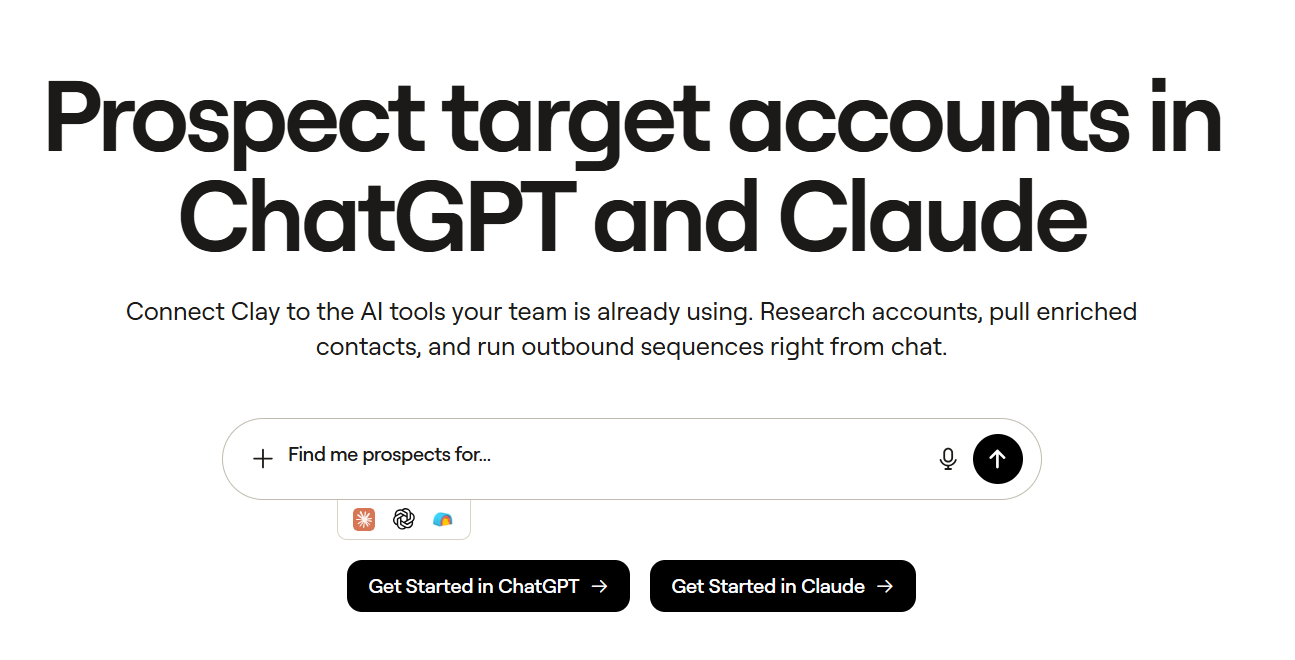
Clay MCP Server connects Clay with AI tools like Claude and ChatGPT. It allows teams to run Clay prospecting, enrichment, and research workflows directly from AI chat instead of manually working inside Clay tables.
The platform is mainly focused on account research, enrichment waterfalls, CRM enrichment, signal tracking, and outbound workflow automation. Compared to most MCP tools, Clay is much stronger for research-heavy prospecting workflows.
To connect Clay MCP Server, first open Claude or ChatGPT and search for the Clay connector inside the connectors or apps section.
Here’s how to connect Clay to Claude:

Here’s how to connect Clay to ChatGPT:
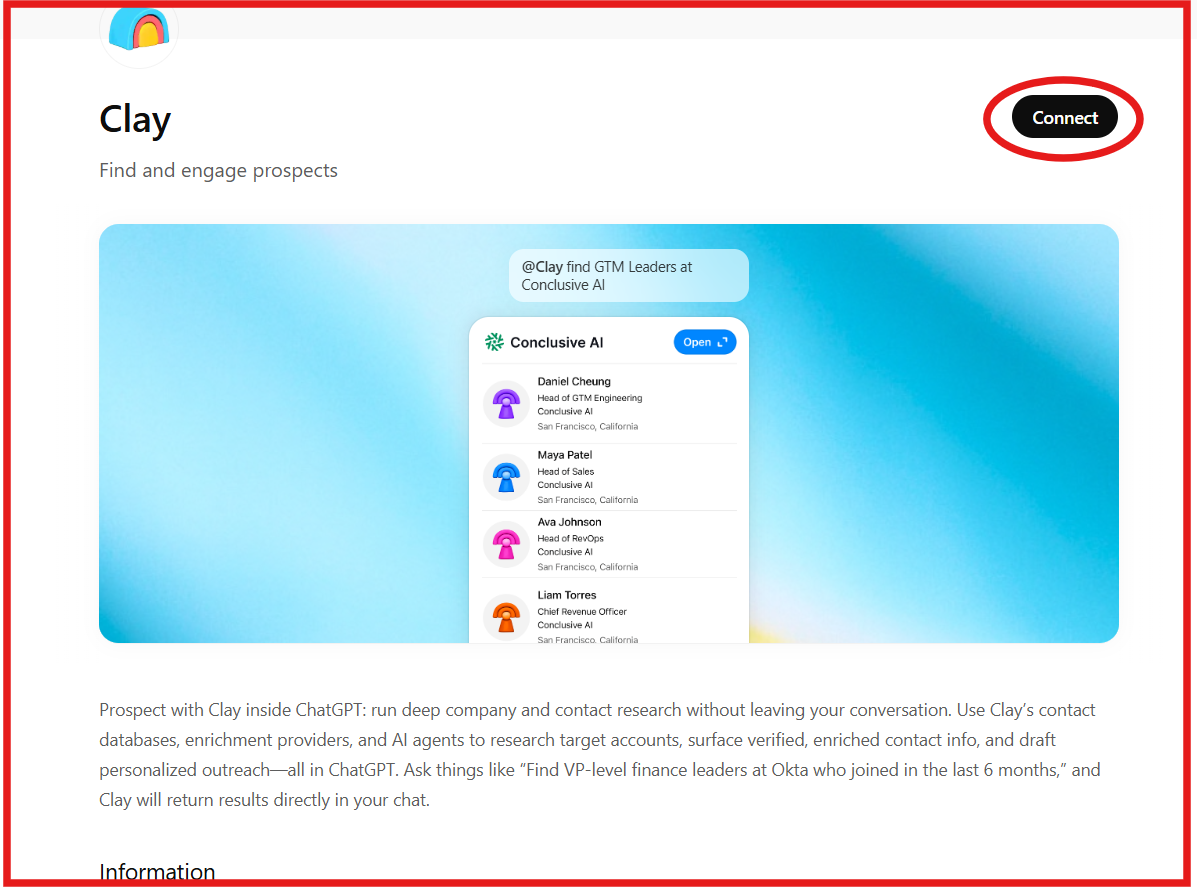
Then select Clay and click Connect or Get Started. After that, sign in with your Clay account and approve the connection request. Once authorized, Clay MCP becomes available inside Claude or ChatGPT.
The MCP setup gives the AI tool access to Clay workflows like:
Clay MCP uses the connector URL: https://api.clay.com/v3/mcp
After setup, prompts like, “Find VP-level finance leaders at Okta who joined in the last 6 months”
Or “Show me all executives and their roles at OpenAI” can run directly inside the AI chat.
Clay MCP works by connecting Claude or ChatGPT directly with Clay’s prospecting and research workflows. Instead of manually switching between enrichment tools, company research tools, and AI chat, reps can run these workflows directly inside the conversation.
Step 1: Connect Clay with Claude or ChatGPT - Once the Clay connector is enabled, the AI tool gets access to Clay MCP workflows and prospecting tools.
Step 2: Search for prospects from chat - A rep can ask prompts like, “Find VP-level finance leaders at Okta who joined in the last 6 months.” Clay MCP then searches Clay’s contact databases and returns matching contacts directly inside the chat.
Step 3: Enrich the prospect and company data - Clay can enrich the contacts with verified emails, funding data, tech stack, website traffic, headcount growth, open jobs, and other company insights using its enrichment providers and AI agents.
Step 4: Research the target account - The workflow can also answer prompts like, “Show me all executives and their roles at Conclusive AI” or “Show me headcount growth for this company over time.”
Step 5: Draft personalized outreach - Once the research is complete, Clay MCP can help draft personalized outreach using the enriched contact and company data.
Step 6: Run GTM workflows from chat - Depending on the setup, reps can also trigger workflows like enrichment waterfalls, outbound preparation, lead qualification, and outbound sequences directly from Claude or ChatGPT.
Clay MCP Server is mainly used for account research, contact enrichment, and outbound preparation workflows inside Claude and ChatGPT.

Alt text: Clay pricing
Clay MCP Server offers limited free usage for testing inside Claude and ChatGPT. New users currently get 500 free credits to test prospect search, enrichment, and account research workflows.
Clay also offers a Free plan that includes, 100 data credits per month, 500 actions per month, unlimited seats and tables, Claygent access, and multi-provider waterfall workflows.
However, some features are limited on the free plan. For example, phone number enrichment requires a paid plan. The paid Launch plan starts at $185/month. Clay uses two systems for pricing:
Clay also mentions that Clay MCP uses the same credit system as the normal Clay platform, so MCP usage consumes credits from your Clay account.
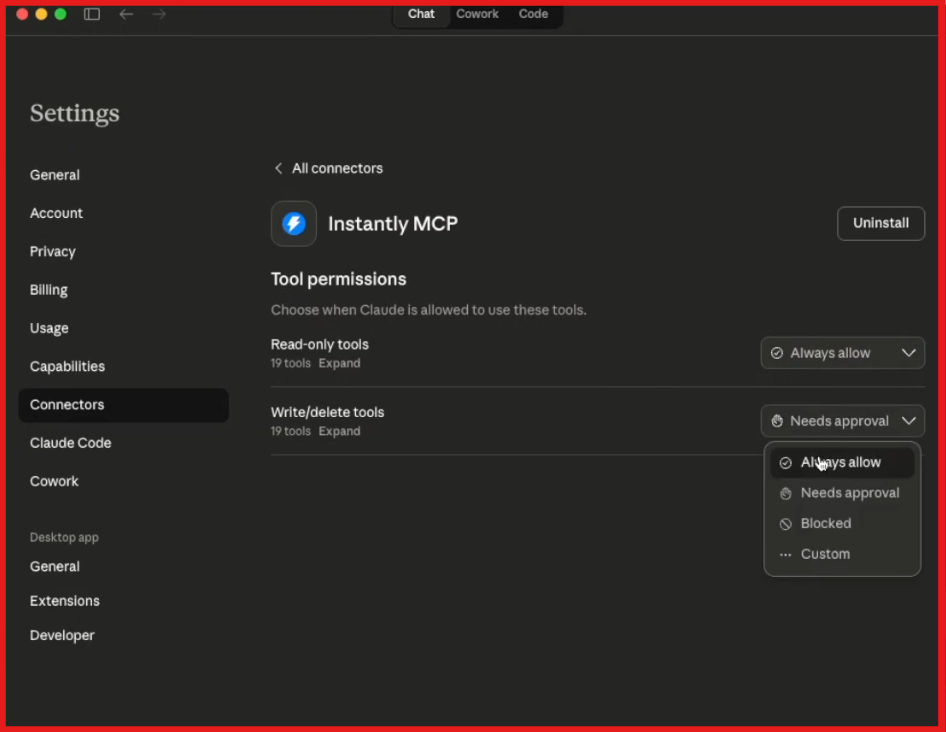
Instantly MCP Server connects AI assistants like Claude, Cursor, n8n, and other MCP-compatible clients with your Instantly account. Once connected, the AI can create campaigns, manage leads, pull analytics, view replies, and manage sending accounts from chat.
Instantly MCP Server mainly helps automate outreach and campaign management workflows after leads are already available.
To connect Instantly MCP Server, log in to your Instantly account and go to Integrations → API Keys. Click Create API Key, copy the key, and store it safely because it works like a password for your Instantly account.

For Claude Desktop, open Settings → Connectors → Add custom connector.

Add the name as Instantly MCP and paste this remote MCP server URL: https://mcp.instantly.ai/mcp/YOUR_API_KEY
Replace YOUR_API_KEY with your actual Instantly API key, then click Add. To test the connection, ask your AI assistant: “What campaigns do I have in Instantly?” If it shows your campaign list, the MCP connection is working.
Once Instantly MCP is connected, your AI assistant can interact directly with your Instantly workspace instead of you manually managing everything inside the dashboard. The workflow usually starts with campaign setup, then lead management, followed by performance tracking and inbox operations.
Step 1: Connect Instantly with your AI assistant - Once the MCP connection is active, Claude or another MCP-compatible tool can read and write data inside your Instantly account based on the actions you allow.
Step 2: Create or manage campaigns from chat - You can ask AI to create a new campaign, add email steps, pause underperforming campaigns, or show all active campaigns.
Step 3: Add and manage leads - Instantly MCP can add leads to a campaign, list leads in a campaign, or move leads from one campaign to another.
Step 4: Pull campaign analytics - The AI can show reply rates, best-performing campaigns, and daily performance breakdowns from Instantly.
Step 5: Handle email and account operations - The AI can show recent replies, check unread emails, list sending accounts, enable warmup for a new account, and check account health.
Instantly MCP Server is mainly useful for teams that already use Instantly for cold email outreach. It helps AI manage campaign setup, leads, replies, analytics, and sending accounts from chat.
Instantly says the MCP server is free with your Instantly subscription. You just need an Instantly account with API access.
So there does not appear to be separate MCP pricing based on the data provided. The main requirement is having an Instantly plan that includes API access.

Apollo MCP connects AI tools like Claude, ChatGPT, and Perplexity directly with your Apollo account. Once connected, you can search for leads, enrich contacts, create or update records, add prospects to sequences, and analyze outreach performance directly from chat.
Apollo MCP is built more around lead sourcing, enrichment, and outbound workflow execution inside AI conversations.
To connect Apollo MCP, first log in to your Apollo account using a business email. Apollo says any plan qualifies, including the free plan.
For Claude, open, Settings → Connectors → Apollo.io

Click Configure and sign in with your Apollo account using OAuth authentication.

Apollo specifically mentions that no API keys or developer setup are required for the native connector setup. Once connected, Claude can access Apollo actions based on your Apollo permissions and plan limits. To test the connection, try prompts like:
If Claude returns Apollo prospect results, the connection is working properly.
Once Apollo MCP is connected, your AI assistant can handle prospecting, enrichment, outreach setup, and workflow execution directly from the conversation. The process usually starts with lead search, followed by enrichment, contact management, and outreach activation.
Step 1: Connect Apollo with your AI assistant - Once connected, Claude, ChatGPT, or another supported AI tool can securely access your Apollo workspace using your Apollo permissions.
Step 2: Search for leads using natural language - You can describe your ICP in plain English, and Apollo MCP searches Apollo’s B2B database directly from chat. For example: “Find VP-level RevOps leaders at Series B fintech companies in New York.”
Step 3: Enrich contacts and companies - Apollo MCP can enrich people and company records with verified emails, phone numbers, company details, hiring signals, and firmographic data.
Step 4: Create or update records - The AI can create new contacts, update existing records, and manage account data directly inside Apollo without switching tabs.
Step 5: Add leads to sequences - Once prospects are ready, Apollo MCP can enroll contacts into existing Apollo sequences directly from the conversation.
Step 6: Analyze outreach performance - Apollo MCP can pull analytics data such as sequence performance, engagement metrics, and outreach activity directly into the AI conversation.
Apollo MCP is mainly useful for sales and GTM teams that want to combine AI workflows with Apollo’s prospecting and outbound system inside one workspace.
Apollo says any Apollo plan qualifies for MCP access, including the free plan. There is no separate MCP pricing mentioned in the provided data.
However, Apollo also states that some enrichment and data actions consume Apollo credits based on your existing Apollo plan. Your usage limits, permissions, and credits inside the AI tool mirror your Apollo account exactly.
Amplemarket MCP Server connects Amplemarket with AI assistants like Claude, ChatGPT, Cursor, and other MCP-compatible clients. Once connected, the AI can search prospects, enrich contacts and companies, manage lead lists, check contact activity, enroll leads into sequences, and ask analytics questions from chat.
Amplemarket MCP is more focused on outbound prospecting and AI SDR workflows. It covers more than simple lead search because it also supports enrichment, lead lists, account research, sequence enrollment, and performance analysis.
To connect Amplemarket MCP Server, you need an active Amplemarket account and an MCP-compatible AI client. The MCP server URL is: https://mcp.amplemarket.com/mcp
For Claude, go to Customize → Connectors, add a new custom connector named Amplemarket, set the URL to https://mcp.amplemarket.com/mcp, and click Add. Then find Amplemarket in your connectors list and click Connect to authenticate.

Amplemarket uses OAuth 2.0, so you do not need an API key. You sign in through your browser and approve access. Each user authenticates individually, and the MCP server uses that user’s Amplemarket account permissions.
Once Amplemarket MCP is connected, your AI assistant can work with real Amplemarket data directly from chat. The workflow usually starts with prospect search, then moves into enrichment, lead list creation, and sequence enrollment.
Step 1: Search for prospects from chat - You can ask Claude or ChatGPT to find people using filters like name, title, seniority, department, location, company, industry, and company size.

Step 2: Search or research companies - Amplemarket MCP can also search companies by name, domain, industry, size, location, and type. It can return company details like funding, tech stack, and headcount.
Step 3: Enrich people or companies - The AI can enrich a person by email, LinkedIn URL, or name and company. It can also enrich companies by domain or LinkedIn URL.
Step 4: Create and manage lead lists - The workflow can list existing lead lists, create new lead lists, view leads inside a list, and add leads to an existing list.
Step 5: Enroll leads into sequences - Amplemarket MCP can add leads into existing sequences and supports custom data per dynamic field, so leads can get personalized copy for sequence stages.
Step 6: Check activity and analytics - The AI can retrieve contact activity, check previous touchpoints, and ask analytics questions about sequences, emails, LinkedIn, phone calls, meetings, and more.
Amplemarket MCP Server is useful for teams that want to run prospecting, enrichment, list building, and outbound workflows from Claude or ChatGPT.
Amplemarket MCP requires an active Amplemarket account. The setup does not require an API key because it uses OAuth authentication. The enrichment workflow uses Amplemarket credits.
The enrich_person tool uses 0.5 credits per enrichment, and repeated enrichments within 24 hours are cached, so they do not cost extra during that window. Revealing email addresses or phone numbers may cost additional credits on top of the base enrichment.
Amplemarket also mentions a rate limit of 100 requests per minute per user for the MCP server.
Choosing the right MCP server depends on what part of lead generation you want AI to handle. Some tools are better for prospect sourcing and enrichment. Others are stronger for research-heavy workflows, outbound automation, or campaign execution. A few platforms try to combine everything inside one AI workflow.
Here is a simple breakdown based on the MCP workflows and features discussed above.
Enter your email to get a custom plan & stack recommendation for your business
Please check your mailbox in 5 minutes
MCP servers are becoming a practical way to run lead generation workflows directly from AI tools like Claude and ChatGPT.
Instead of manually switching between prospecting tools, enrichment platforms, CRMs, and outreach software, teams can now search leads, enrich contacts, build lists, and manage outbound workflows from one conversation.
But every MCP server is built differently. Some focus more on prospect research and enrichment. Others focus more on campaign execution and outreach automation after leads are already available.
If your main goal is finding B2B leads and enriching contact data faster, Leadsforge is the better option. It is mainly built for ICP lead search, email enrichment, LinkedIn enrichment, phone enrichment, competitor follower prospecting, and lookalike lead generation through AI prompts.
Try Leadsforge MCP server now with 100 free credits!