When your CRM integrations fail, it's often due to API errors. These errors disrupt data flow, causing missing leads, incomplete records, or failed updates. The good news? Most issues fall into three categories: authentication problems, data formatting errors, and rate limits. Here's how to address them:
Key Steps to Troubleshoot API Errors:
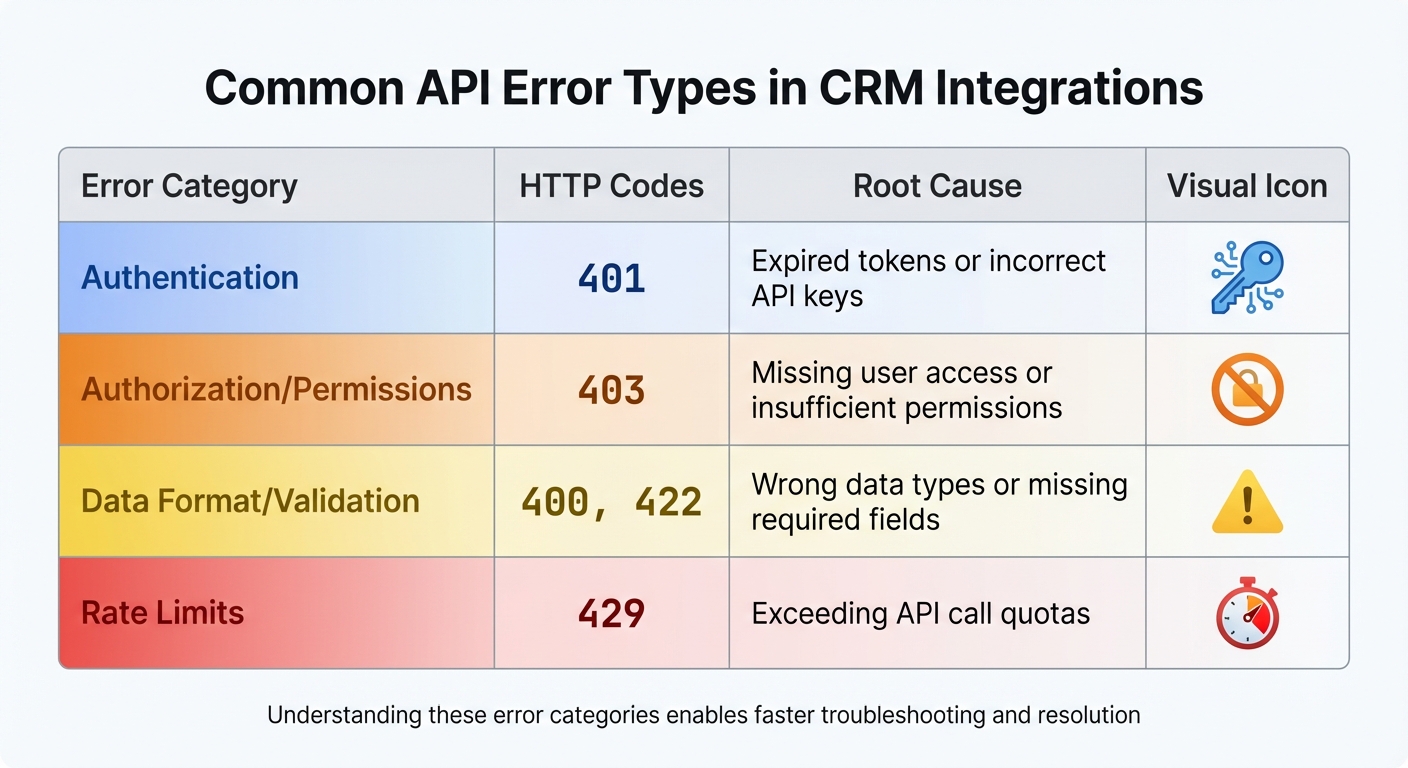
Common API Error Types in CRM Integrations: Categories, HTTP Codes, and Root Causes
API errors rarely come with a neon sign pointing them out. Instead, you might notice subtle but telling symptoms. For example, your integration dashboards might display statuses like "failed" or "partial success." Often, sales reps are the first to notice something’s off - they may report missing leads in Salesforce or HubSpot, or flag contact records with blank fields where enrichment data should be.
On the technical side, you might see error banners in your CRM or middleware platforms. Revenue dashboards could look inaccurate due to delayed data syncs. And don’t be surprised if support tickets start piling up, as team members scramble to deal with incomplete or missing data.
Breaking down API errors into categories makes troubleshooting much easier. Here are the key types:
Here’s a quick snapshot of these error categories:
| Error Category | HTTP Codes | Root Cause |
|---|---|---|
| Authentication | 401 | Expired tokens or incorrect API keys |
| Authorization/Permissions | 403 | Missing user access or insufficient permissions |
| Data Format/Validation | 400, 422 | Wrong data types or missing required fields |
| Rate Limits | 429 | Exceeding API call quotas |
Once you’ve categorized the error, it’s time to dig into the details using logs and monitoring tools. Logs from your CRM and integration platforms are invaluable here. Start by checking the integration status sections - whether it’s Salesforce’s Refresh History, HubSpot’s integration dashboard, or job logs from your middleware. These will help you zero in on failed syncs and their timing.
Pay close attention to request and response logs, including the URL, headers, body, and error details. The HTTP status code usually points you to the root cause. For instance, if you’re using a tool like Leadsforge to send enriched lead data to your CRM, compare the failing payload against your CRM’s field requirements. Look at both the outbound logs from Leadsforge and the inbound logs in your CRM to pinpoint where things are breaking down.
Many modern platforms also offer correlation IDs, which can be a lifesaver. These IDs let you trace a single request across systems, helping you determine whether the issue lies with your lead generation tool, middleware, or the CRM itself.
Authentication errors typically appear as HTTP 401 responses, signaling invalid or expired tokens. On the other hand, permission issues show up as HTTP 403 Forbidden errors, meaning your credentials are accepted but lack the required access rights. For instance, in OnceHub CRM integrations, token expiration can completely halt syncs, often accompanied by clear messages about expired credentials.
These problems usually stem from a few key causes. OAuth tokens have a set expiration period, and API keys may be revoked manually or automatically due to security policies. In Salesforce, API access must be explicitly enabled - usually limited to Enterprise Edition accounts or higher. Missing this permission often causes integration failures. Additionally, if the integration user doesn’t have read/write permissions for specific objects or fields, you might encounter 403 errors even if authentication is successful.
Once you've identified the issue, you can resolve it by following these steps:
Once these adjustments are made, test your integration to ensure everything is functioning as expected.
To avoid recurring authentication errors, set up automatic OAuth token refresh mechanisms. Most integration platforms today support automatic token rotation before expiration. Additionally, create dedicated admin or integration user accounts specifically for API connections. This helps prevent disruptions when human users change roles or leave the organization.
In Salesforce, assign the Data Cloud Salesforce Connector permission set to your Platform Integration User to maintain consistent access without manual intervention. Use built-in CRM tools, like Salesforce's Refresh History or integration dashboards, to monitor for 401 and 403 errors in real time. Regular audits - ideally every quarter - can help identify and resolve permission misconfigurations before they cause integration failures.
Data format errors often show up as HTTP 400 Bad Request responses in your integration logs. These errors indicate that your API request is either malformed or contains data that the CRM cannot process. Messages like "FIELD_CUSTOM_VALIDATION_EXCEPTION" in Salesforce or alerts about missing fields are common signs of mapping issues.
Another frequent issue is invalid picklist values. This happens when the data you send doesn't match the CRM's predefined dropdown options. For instance, if the CRM expects "Med" or "M" but receives "Medium", it will flag the error. Similarly, data type conflicts - like sending text to a numeric field or using incorrectly formatted dates - can lead to validation failures. Platforms like OnceHub allow you to catch these problems by reviewing the field mapping sections for mismatches.
Once you identify errors, it’s important to adjust your mappings right away. Start by reviewing error logs to pinpoint field mismatches. Then, open the mapping interface in your platform - whether it’s Salesforce Data Cloud, OnceHub, or another tool - and update the mappings to match the CRM’s expected field names. For example, if your integration sends "phone" but the CRM expects "PhoneNumber", update the mapping to align correctly.
Standardizing data before integration is key. For US-localized integrations, follow standards like ISO 8601 for dates, E.164 for phone numbers, and proper US dollar formatting. If invalid picklist values are causing issues, query the CRM's API to retrieve the list of accepted values and adjust your data accordingly. After making these changes, test the integration using sample records and reprocess any failed batches.
For custom field updates in Salesforce, it’s also a good idea to refresh the data stream or update API names to ensure smooth processing.
Avoid data format errors altogether by standardizing your data early in the process. Platforms like Leadsforge tackle this issue with a waterfall data enrichment process, which ensures verified and standardized data. Their system pulls from multiple B2B sources, covering over 500 million contacts globally. It validates emails in real time, checks LinkedIn URLs against active profiles, and confirms phone number formats and validity.
Taking these steps to standardize your data upfront will help ensure smoother and more reliable integrations.
Fixing data errors is just one part of the puzzle; managing API load is equally important to ensure smooth synchronization. Beyond issues like authentication and data formatting, performance challenges can throw a wrench into CRM integrations.
When integrations hit rate limits, they often return HTTP 429 "Too Many Requests" responses. Salesforce users, for instance, might see REQUEST_LIMIT_EXCEEDED errors. This is especially common during bulk uploads or when multiple integrations compete for the same API quota during busy hours.
You might notice some telltale signs of these problems: syncs that freeze halfway through, records that exist in your source system but never make it to the CRM, or bulk jobs stuck in "queued" or "in progress" status before eventually failing. Performance issues can also show up as errors like "Apex CPU time limit exceeded" in Salesforce or jobs that start fine but fail midway.
To pinpoint the problem, pay close attention to error codes. Rate-limited responses will include a Retry-After header, while timeouts often show up as 504 gateway errors or socket timeouts. CRM-side performance issues, on the other hand, usually stem from complex or long-running queries that drain processing power.
To cut down on API calls, batch records together - grouping 100–200 records per request, depending on what your CRM supports. This reduces the total number of calls while keeping payload sizes manageable. For errors like HTTP 429 or temporary 5xx responses, use exponential backoff: start with a 1-second delay, double it with each retry, and add random jitter to avoid simultaneous retries. Always respect any Retry-After headers your CRM provides.
Trim payload sizes by sending only the fields that need updates and querying only recently changed records using timestamps, instead of pulling entire datasets. If you're using Salesforce, steer clear of complex formula fields in WHERE clauses, and rely on indexed fields to avoid hitting CPU limits or timeouts.
Once you've optimized your current setup, it's time to look ahead and prevent future disruptions.
Set up monitoring systems to track API call counts per hour, the rate of 429 errors, and average response times. Trigger alerts if 429 errors exceed 1–2% of total requests or if job durations start spiking beyond normal levels.
Prioritize workloads by their urgency. Run critical tasks - like creating new leads - in real time, while scheduling less urgent jobs, such as data enrichment, during off-peak hours. For instance, if you're using a tool like Leadsforge to enrich lead data, process those updates overnight instead of syncing thousands of records during peak business hours. This approach preserves your API quota for essential operations while keeping your CRM data clean and up-to-date.
Finally, conduct sandbox load tests to figure out your system's maximum processing capacity per hour before performance starts to dip. Use these results to set safe limits for concurrency and batch sizes. Regularly review your API usage against your CRM's documented limits so you can plan for growth and adjust your integration strategy as needed.
A well-structured diagnostic checklist is essential for troubleshooting API errors efficiently. Start by checking the integration's health and determining when the last successful sync occurred. Verify authentication details and permissions, then inspect API logs for HTTP status codes and error messages. Confirm that tokens are still valid, API keys are active, and all required scopes or permissions remain intact. Additionally, review CRM and integration user permissions for every object and field involved in the integration.
Ensure payloads adhere to the CRM API specifications to address potential issues early on. For example, if you're working with Salesforce Data Cloud, download error files from the Refresh History tab to identify missing field permissions. For platforms like OnceHub, filter for CRM tiles and reconnect if tokens have expired. Using a dedicated admin account can help avoid permission conflicts.
To validate the API's functionality, test a simple, minimal request - like creating a basic contact - using tools such as Postman or your CRM’s API explorer. Reproducing the issue in a sandbox environment helps isolate side effects and pinpoint the root cause. Once resolved, document the solution in your runbook to provide a clear guide for future troubleshooting.
Once your checklist is in place, leverage specialized tools to streamline and automate the troubleshooting process. These tools help transform manual efforts into a repeatable workflow. Middleware platforms like Zapier, Make, or Workato can centralize integration flows, enable retries with exponential backoff for temporary failures, and allow data transformation - such as standardizing phone numbers, dates, or country codes - before data reaches your CRM. This reduces format mismatches and ensures smoother integration.
For monitoring API performance, tools like Datadog or Sentry can track error rates and latency. Configure alerts to notify your team when issues like 429 errors or unusually long job durations arise.
When dealing with lead and contact data, using a CRM-ready data source like Leadsforge can eliminate many validation errors upfront. Leadsforge automates prospecting and enriches data by connecting with multiple B2B data providers to verify emails, LinkedIn profiles, and phone numbers. It also standardizes data formats, reducing errors. Verified leads can be pushed directly into your CRM or exported as CSV files, ensuring consistency throughout your integration pipeline.
Proper documentation is the backbone of long-term integration reliability. It’s not optional - it’s what ensures your integrations remain efficient as they scale. Maintain an integration catalog that details every CRM connection, the responsible team, endpoints used, authentication methods, and data flow diagrams. Include a field mapping register that documents every source-to-CRM field relationship, specifying data types and transformations. Store this information in a version-controlled system like Confluence or Git, and assign team members to review it quarterly.
Capture known errors and their resolutions in a shared runbook. For instance, if a Salesforce Data Cloud stream fails due to missing field permissions, document the steps: download errors from the Refresh History tab, reenable Read Access for custom fields, and include a note to prevent similar issues in future setups. Similarly, if OnceHub tokens expire, record the fix (reconnecting via the CRM tile) and set reminders for monthly checks. Log all mapping or permission changes and conduct post-mortem reviews to refine your diagnostic checklist. This governance approach ensures consistent quality, faster resolutions, and smoother scaling as your team and integrations grow.
Keeping CRM integrations dependable requires a focus on thorough diagnosis, solid preventative measures, and ongoing monitoring - not just patchwork solutions. Start by ensuring your tokens, API keys, and permissions are properly configured. Address data format and validation issues early in the process. For example, standardize formats for emails, phone numbers, dates, and currency (use USD with two decimals for U.S. teams) before the data enters your CRM. Keep a dynamic field-mapping document that you update whenever changes are made to your CRM schema. To manage rate limits and performance, design your integrations to include batching, exponential backoff, and scheduled syncs during non-peak hours to avoid throttling or timeouts.
By following these guidelines, you’ll set a strong foundation for reliable integrations.
Start by reviewing your current diagnostic processes. Implement alerts for issues like authentication failures, validation errors, or rate-limit responses, so you can catch problems before they escalate.
Consider using tools like Leadsforge to simplify data standardization and reduce integration errors. Leadsforge helps by generating verified, standardized lead lists with real-time email validation, LinkedIn profile checks, and phone number verification. This results in fewer rejected records and smoother CRM syncing. With access to over 500 million global contacts from multiple verified B2B data sources, Leadsforge offers higher match rates and cleaner data compared to tools that rely on a single source. Teams can either export verified leads as CSV files or push them directly into Salesforge for immediate outreach, minimizing manual errors and ensuring consistency across systems.
Treat CRM integrations as an essential part of your operations. Document all connections, mappings, and common errors in a shared runbook. Assign clear ownership for each integration, conduct quarterly reviews of permissions and mappings, and perform post-incident reviews to refine your processes. This structured approach ensures your integrations can grow seamlessly as your data, tools, and teams expand.
When integrating a CRM with an API, avoiding authentication errors is all about precision and preparation. Start by ensuring your API credentials - like keys or tokens - are correct, active, and securely stored. Also, check that the permissions and access levels align with what the integration requires. If the API uses refresh tokens, update them regularly to maintain seamless access.
Before diving into full integration, test the API connection with basic requests. This step can help you catch and resolve issues early on. If you're working with tools like Leadsforge, take advantage of their straightforward integration features - they can make the process smoother and reduce the chance of authentication hiccups.
To manage API rate limits effectively, it's all about using smart strategies to make the most of your allotted calls. Start by batching requests whenever you can. This reduces the number of individual API calls, saving both time and resources. Use exponential backoff for retries - this means spacing out retry attempts progressively, which helps avoid overloading the server during busy times. Also, keep a close eye on your API usage metrics. Regular monitoring ensures you stay within the limits and allows you to adjust your requests to pull only the data you actually need.
For example, if you're working with tools like Leadsforge, their ability to integrate efficiently with multiple data sources can make a big difference. By streamlining your processes, these tools help cut down on unnecessary API calls. This reduces the chance of hitting rate limits while keeping your CRM updated without interruptions.
To minimize errors during CRM integrations, make sure your data follows a consistent format. Use MM/DD/YYYY for dates, $ for currency, and 1,000.00 for numbers. Stick to imperial units for measurements, °F for temperatures, and ensure all text aligns with US English spelling rules. It's also important to validate key fields like email addresses, phone numbers, and URLs to confirm they meet the necessary standards.
Before starting the integration, convert your data into formats that are compatible with your CRM system. Tools such as Leadsforge can help by verifying and enriching your data, reducing potential issues and making the integration process much smoother.